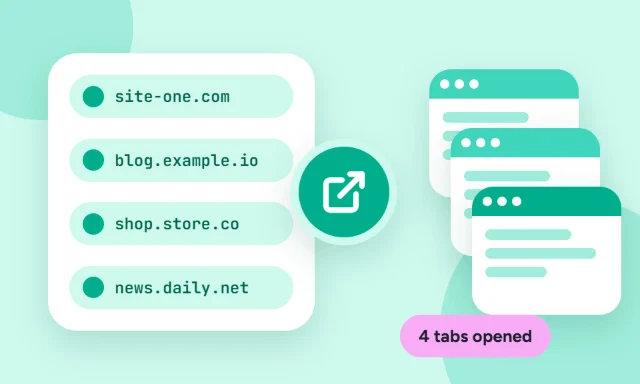
Browsers don’t have a “paste a list of links” button, but there are several quick ways to open many URLs at once. The fastest is an online bulk URL opener: paste your list, click once, and every link opens in its own tab.
Method 1: Use a bulk URL opener (fastest)
- Copy your links — from Excel, Google Sheets, Notepad, an email or anywhere else.
- Paste them into Open Multiple URLs. It finds every web address, even in messy text, removes duplicates and adds any missing https://.
- Click Open links.
This works the same in Chrome, Edge, Firefox, Safari and Brave, and nothing is installed.
Only one tab opened?
Browsers let a website open just one new tab per click unless you allow pop-ups for it. In Chrome and Edge, click the blocked pop-up icon at the right of the address bar, choose Always allow pop-ups and redirects from the site, then click Open links again. In Firefox, click Options in the yellow bar and allow pop-ups. You only need to do this once. If you’d rather not, choose “5 at a time” and click once per batch.
Method 2: Put the links in a bookmarks folder
Handy for a set of links you open every day:
- Create a bookmarks folder and add each link to it.
- Right-click the folder in the bookmarks bar.
- Choose Open all (Chrome and Edge) or Open All in Tabs (Firefox).
Method 3: Open a set of pages when the browser starts
In Chrome, go to Settings → On start-up → Open a specific page or set of pages and add your links. Edge has the same option under Settings → Start, home and new tab page. In Firefox you can set several home pages by separating them with a vertical bar (|) in Settings → Home.
Method 4: From the command line (for power users)
You can pass several URLs to the browser in one command, for example on Windows:
start chrome "https://example.com" "https://example.org"This is useful in scripts, but for day-to-day use Method 1 is quicker.
Opening links from Excel or Google Sheets
Select the column of links, copy it, and paste it straight into Open Multiple URLs. Each cell becomes a line, so every link is picked up — no formulas or macros needed.
Tips for opening lots of tabs
- Opening 50+ tabs at once can slow your computer; batches of 10–20 are more comfortable.
- Use “Open in reverse order” if you want the first link to end up in the right-most tab.
- Keep your list on the page — it’s remembered in your browser if you reload.